
Shortcuts are a quick way to access different actions in an app — you can use them to quickly launch Galactic Decoder and begin scanning images from another app.
You'll be able to write your own shortcut that launches Galactic Decoder to scan an image, or you can use the sample Aurebesh Scan shortcut we've created below.
Add the Shortcut
To add the shortcut to your device, tap the link below.
Using Your Shortcut
Once you have the shortcut installed, you'll be able to access it from different apps through the Share menu. If you like, you can even favorite the shortcut to make it more accessible.
For example, you'll be able to long-press an image in Safari, then use the shortcut to open the image in Galactic Decoder.
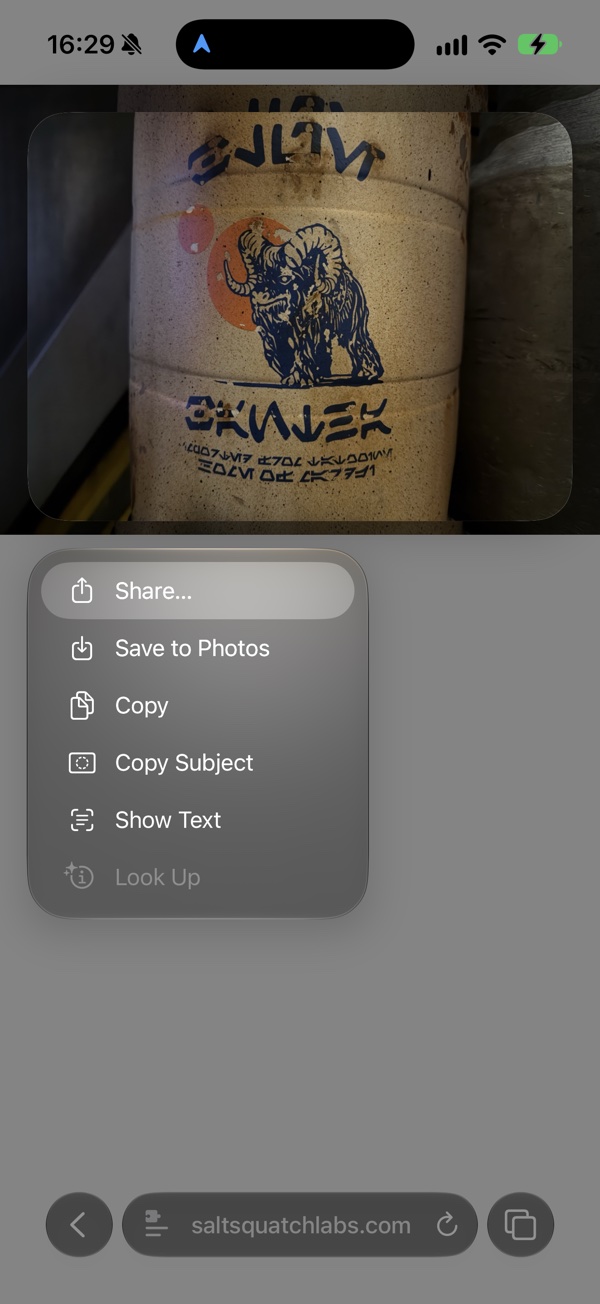
Step 1. Long press an image, then select "Share…"
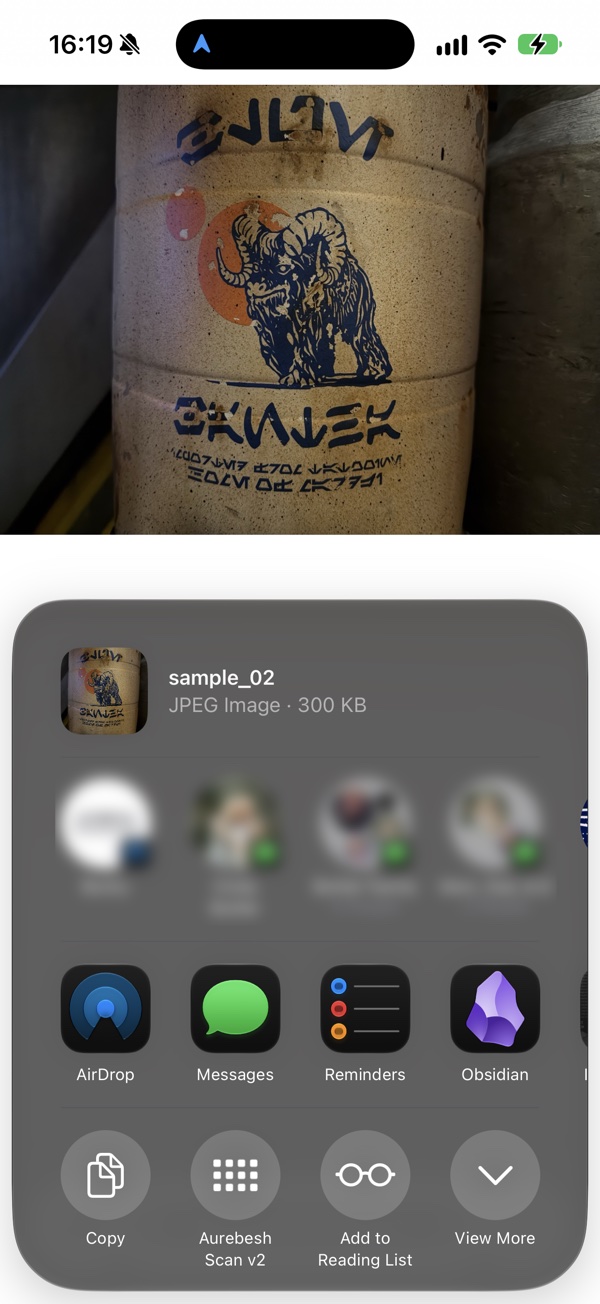
Step 2. Select the shortcut. Here, it's been pinned, but you can also find it under the "View More" option.
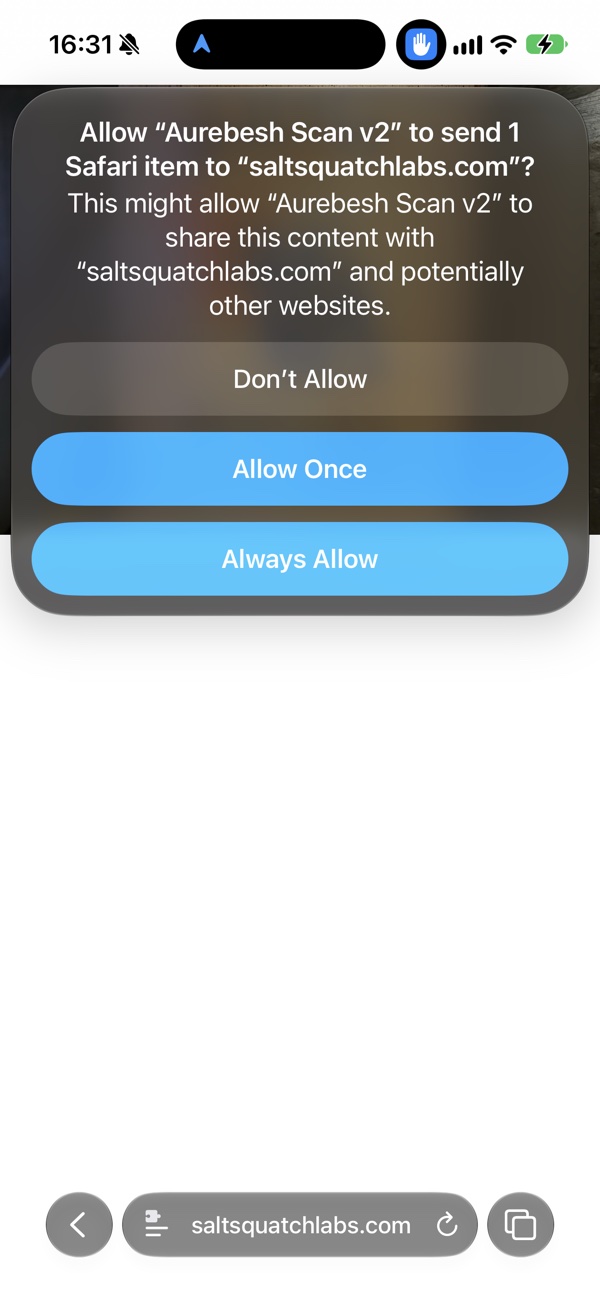
Step 3. The first time you run the shortcut, you may need to grant permission for the shortcut to run on the current website.
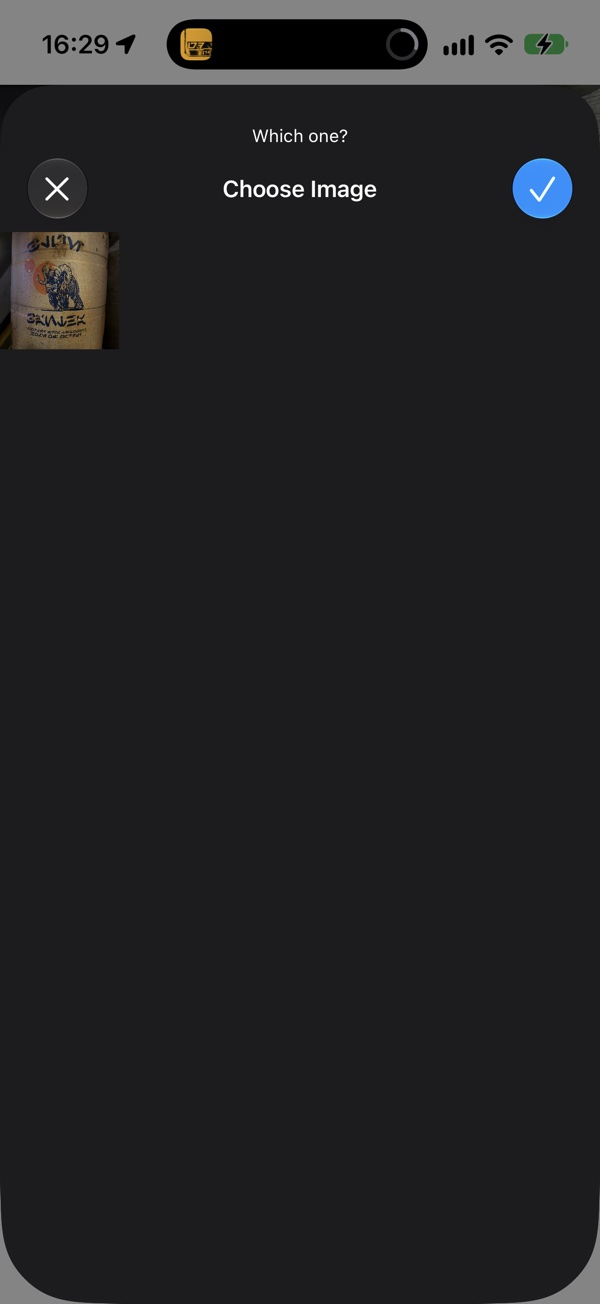
Step 4. Select the image that you'd like to scan from the images found by the shortcut.
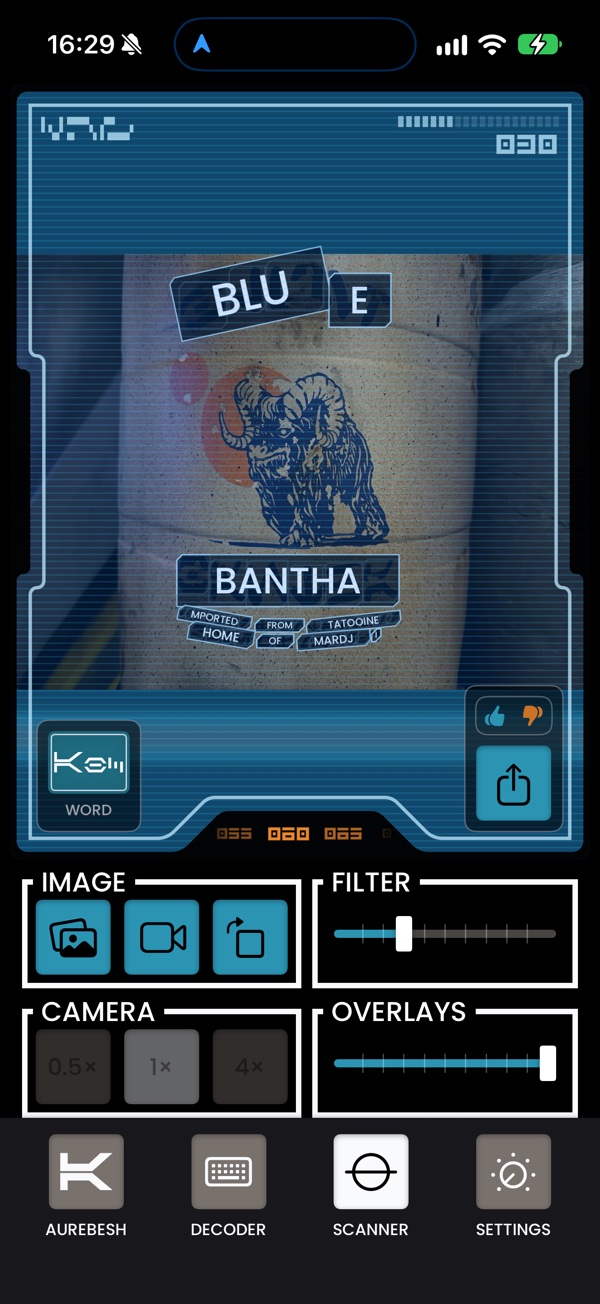
Step 5. The shortcut will launch Galactic Decoder, and begin scanning.
Scanning Without Our Shortcut
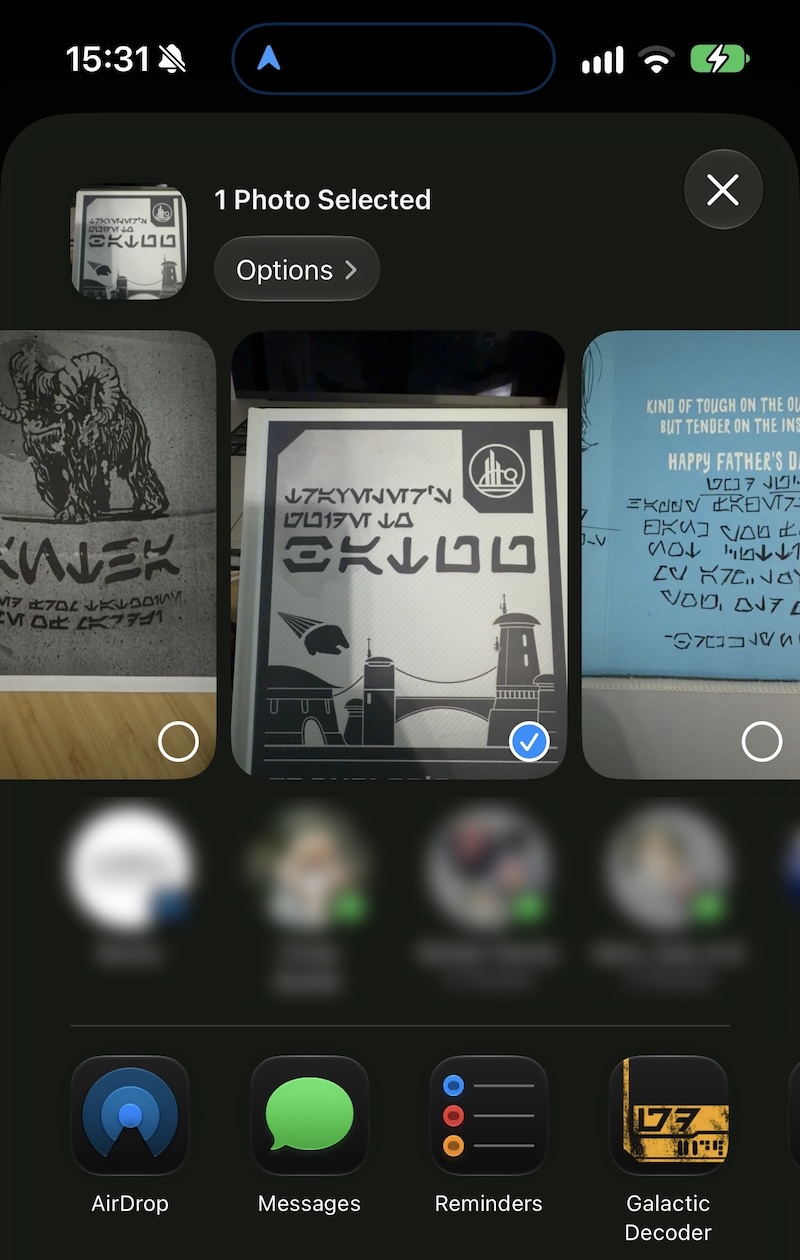
Even if you don't install our shortcut, you'll be able to access Galactic Decoder scanning from apps like Photos. Find a photo in your library you want to scan, tap the share icon, and you can add Galactic Decoder to the list of apps used to open the photo.
Learn More
Shortcut Release Notes
- v3
- Support for Image types - now scan direct from a captured screenshot, without saving to Photos first
- v2
- Support for scanning from an image on a web page
- v1
- Initial public release